What you need before starting
- eSIM-compatible device
- Carrier-unlocked phone
- Stable Wi-Fi
- Access to your checkout email
- Trip within 180 days
- Plan covering your route
- An eSIM-compatible phone, tablet or supported Windows laptop
- A carrier-unlocked device
- Stable Wi-Fi for installation
- Access to the email address used for checkout
- A trip within 180 days of purchase
- A plan covering the exact destination or region
MacBooks do not currently include native eSIM support. Use hotspot from a compatible phone or an external mobile device instead.
Affiliate disclosure: We may earn a commission if you purchase through our partner link.
Choose a ConnectedYou plan — 10% off with code ESIMBROS10
Choose a ConnectedYou PlanStep 1: Check eSIM compatibility
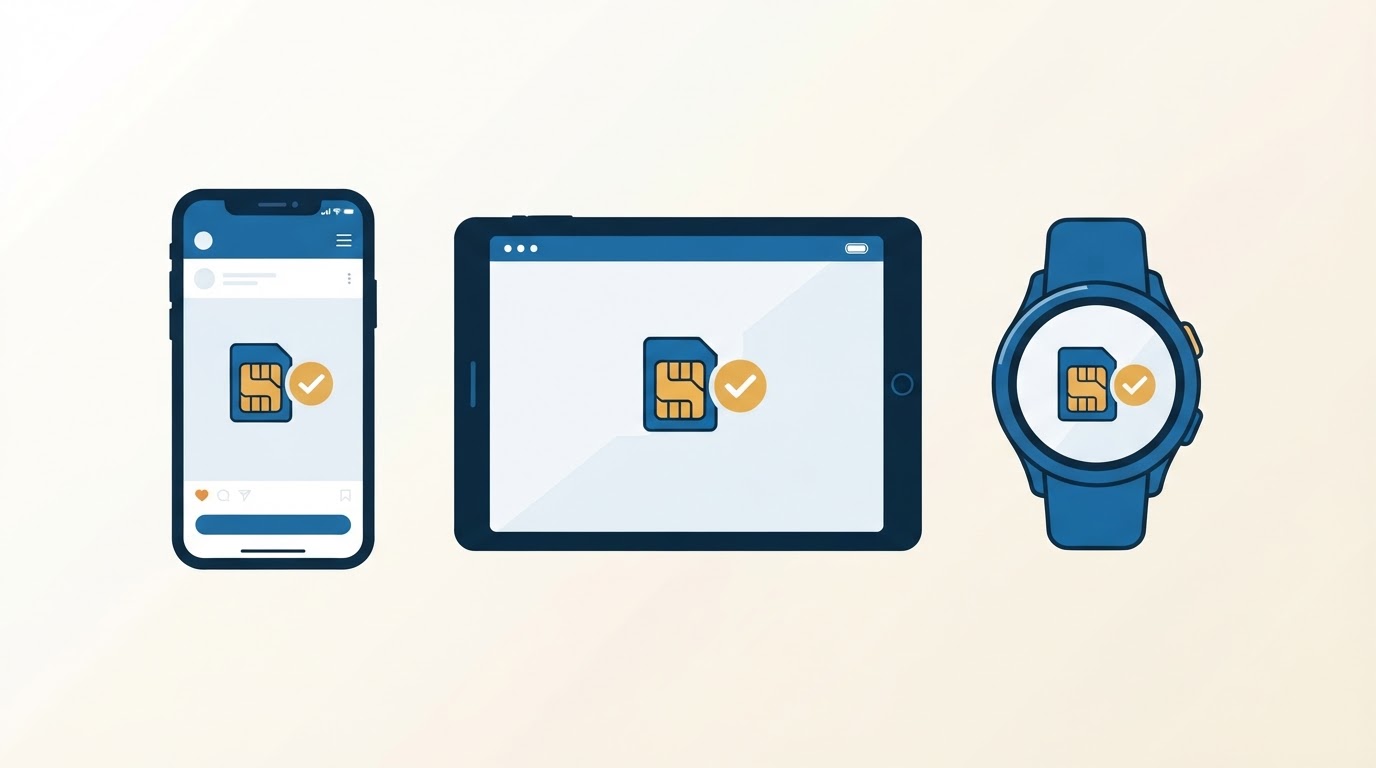
Do this before paying. A device must support eSIM and be unlocked from its mobile carrier. These are separate checks. For full model lists across iPhone, Samsung, Pixel, Xiaomi, iPad and Windows laptops, see the ConnectedYou compatible devices guide.
Check an iPhone
Open Settings > General > About. Look for an EID and the “Carrier Lock” line. “No SIM restrictions” normally means the iPhone is unlocked. Availability can vary by model and country of manufacture, so confirm on Apple’s device specifications if unsure.
Check an Android phone
Open Settings > Network & Internet, Connections or SIM manager, depending on the brand. Look for “Add eSIM”, “Download a SIM” or “Add mobile plan”. You can also dial *#06# and look for an EID, although menus and dial codes vary.
Google Pixel and Samsung Galaxy models commonly support eSIM in recent generations, but regional variants can differ. A model name alone is not enough.
Check carrier lock
A phone may support eSIM but still reject plans from another operator. Ask the original carrier to unlock it before travel. ConnectedYou cannot remove a carrier lock.
Step 2: Choose the right package
Search ConnectedYou by destination. You will normally see country, regional or global options.
Choose a country plan for one-country travel. Choose a regional plan if every country on the itinerary appears in its coverage list. Choose global only when the route crosses regions and the wider coverage justifies its higher price.
Most packages inspected last 30 days from activation. Data sizes commonly range from 1GB to 20GB. A light traveller can start with 1GB to 3GB; regular browsing and social use may need 5GB; remote work or hotspot sharing can require 10GB to 20GB.
Read our ConnectedYou pricing guide before choosing. Check the current ConnectedYou deal status — the verified code ESIMBROS10 currently gives 10% off at checkout.
Step 3: Buy the eSIM
Add the plan to the basket, enter the coupon code ESIMBROS10 in the discount field and pay with a supported card or PayPal. ConnectedYou’s store bills in US dollars. A bank may apply its own conversion or foreign-transaction charge.
Use an email address you can open on the installation device. ConnectedYou sends two emails:
- Order confirmation
- A separate email with the eSIM QR code and activation information
The Help Centre says the QR email can take up to 24 hours, though delivery may be quicker. Check spam and promotions folders. You can also retrieve details from My eSIMs if the email is lost.
Step 4: Install on iPhone
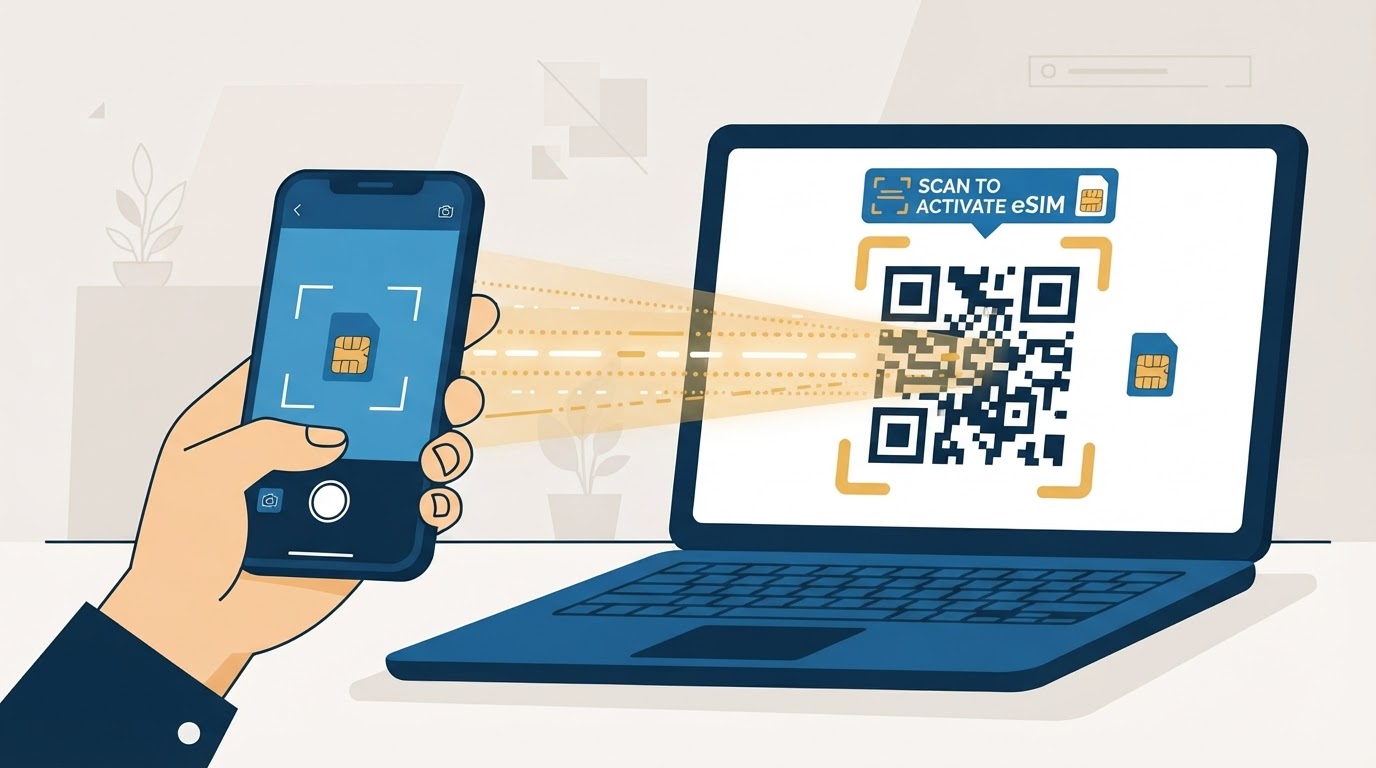
There are two common methods.
iOS 17.4 or later install link
ConnectedYou says its email includes an iOS 17.4+ installation option. Open the message on the iPhone and tap that link. iOS should begin adding the eSIM without a second screen.
QR-code method
- Connect to Wi-Fi Use a stable connection.
- Open settings Go to Settings > Mobile Service or Cellular.
- Add eSIM Tap Add eSIM.
- Use QR code Choose Use QR Code.
- Scan Scan the code shown on another device or printed page.
- Follow prompts Complete the Apple prompts.
- Label the line Name it “ConnectedYou”.
Some iPhones can recognise a QR code from Photos, email or a long press. If that fails, use the settings menu or enter the activation details manually.
Do not delete the profile
Do not delete the profile after installation merely because it cannot yet connect at home. A destination plan may not register until arrival, and the QR code may be single use.
Step 5: Install on Android
Menu names differ, but the normal route is:
- Connect to Wi-Fi Use a stable connection.
- Open Settings
- Find SIM options Go to Network & Internet, Connections or SIM manager.
- Add the eSIM Choose Add eSIM or Download a SIM.
- Scan the QR code Use the ConnectedYou QR code from the email.
- Accept and label Accept the download and label the profile.
On Samsung, look under Settings > Connections > SIM manager. On Pixel, try Settings > Network & Internet > SIMs > Add SIM.
If the camera rejects the QR code, use the manual SM-DP+ address and activation code supplied in the email. Take screenshots of errors before contacting support.
Step 6: Configure dual SIM safely
Keep your home SIM active if you need its number for bank messages or calls, but stop it from providing travel data.
| Setting | Recommended value |
|---|---|
| Default mobile data | ConnectedYou |
| Mobile-data switching | Off |
| ConnectedYou data roaming | On at destination |
| Home SIM data roaming | Off |
| Default voice line | Choose based on carrier charges |
Data roaming must be on for ConnectedYou because the eSIM connects through partner networks. This does not mean your home SIM needs roaming enabled.
For iMessage, ConnectedYou recommends checking Settings > Messages > Send & Receive and selecting the Apple ID email. Standard ConnectedYou plans are data-only, so a mobile number is not included for normal calls or SMS.
Step 7: Activate at the destination
After landing:
- Turn off aeroplane mode
- Enable the ConnectedYou line
- Select it for mobile data
- Turn on data roaming For that line only.
- Wait for registration Give it several minutes.
- Test the connection Open a basic webpage.
The package starts when the eSIM first connects in the covered country or region. If you are already at the destination when installing, it can activate immediately.
ConnectedYou’s terms require activation within 180 days of purchase. The normal fixed package then lasts 30 days.
Step 8: Check usage
ConnectedYou sends email alerts after 50% and 80% of the allowance is used. You can also sign in to My eSIMs and view the current balance.
Your phone’s own data counter is helpful but may not match the provider exactly. Reset the device’s mobile-data statistics when the package starts if you want a second estimate.
Reduce unexpected use by:
- Downloading offline maps
- Disabling photo and video backup
- Stopping automatic app updates
- Turning off autoplay
- Marking a laptop hotspot as metered
- Using lower video-call quality
Step 9: Use mobile hotspot
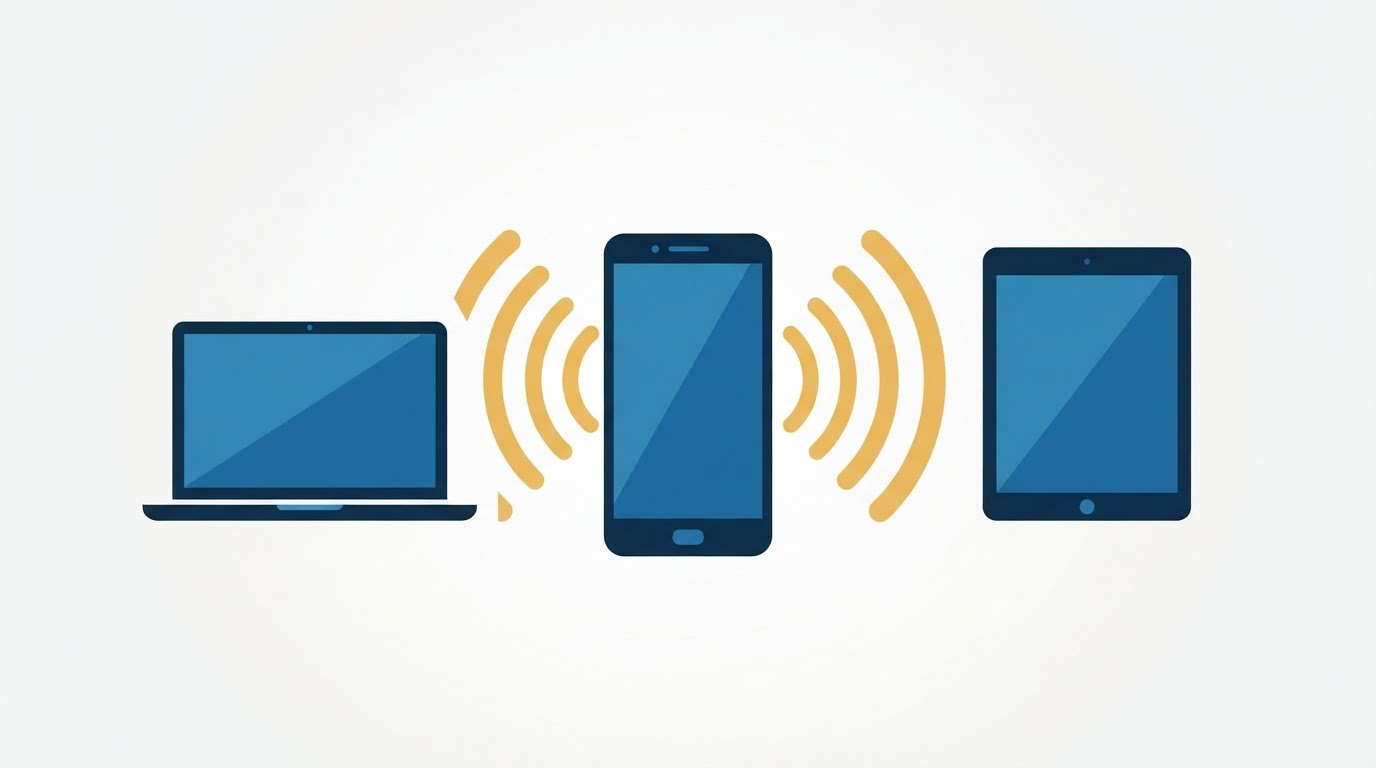
ConnectedYou’s product pages say hotspot is enabled without a separate data or speed cap. Turn on Personal Hotspot on iPhone or Mobile Hotspot on Android, then connect the second device with the displayed password.
Every connected device uses the same fixed allowance. Operating-system updates can consume more data than maps and messages combined. Check connected devices and change the hotspot password if an unknown device appears. The ConnectedYou hotspot guide covers laptop metered settings and data planning.
Step 10: Buy a top-up
Sign in to My eSIMs, select the installed eSIM and review available top-ups. A top-up is limited to the original destination. You cannot add Australia data to an eSIM originally bought for Slovenia.
Current product pages describe top-up as available, while one older Help Centre sentence still says “available soon”. The account screen is the practical source for your profile.
A top-up should begin quickly. If the original package is fully exhausted, wait up to ten minutes and toggle aeroplane mode. If no option appears, buy a new plan or contact support. Full account, balance and partner-linking steps are in the ConnectedYou top-up guide.
Common setup problems
QR code not received
Wait for the separate delivery email, check spam and sign in to My eSIMs. Contact support if it has not arrived within 24 hours.
QR code says it is no longer valid
Check whether the profile is already installed on this phone or another device. QR codes can be single use. Do not keep rescanning it.
The eSIM installs but has no data
Confirm you are inside the supported destination, the line is enabled, data roaming is on and ConnectedYou is selected for mobile data. Toggle aeroplane mode and restart if needed.
Android shows signal but pages do not load
Check the APN instructions in the email. ConnectedYou guidance may use globaldata for the APN on some profiles. Do not change APN settings unless the supplied instructions or support require it.
Data is slow
Disable Data Saver or Limit IP Address Tracking temporarily, toggle aeroplane mode and allow the phone to reconnect. ConnectedYou also suggests switching briefly to 3G and then back to 5G. Local coverage and congestion still set the real speed.
If none of these quick checks helps, work through the full ConnectedYou not-working guide, which covers thirteen fixes from invalid QR codes to APN and hotspot faults.
Can the eSIM move to another phone?
No. ConnectedYou says an installed eSIM is locked to that device and account. Deleting it does not make it transferable. If a phone is lost or replaced, contact support before purchasing again, but do not assume a free replacement is available.
How long does the profile remain active?
Published sources conflict
Product pages say one year from last use, while the Help Centre and legal terms say six months from purchase, top-up or last package expiry, whichever is later. Plan around six months and ask support to confirm the date for your profile.
The 30-day package validity is separate from profile validity. Data expires after the package period even if the eSIM profile remains available for a later top-up.
Support contacts
- Website live chat
- WhatsApp: +45 2452 7923
- Email:
esim@connectedyou.io
Send the order number, phone model, destination, error message and screenshots. Never share your full card number or account password.
Ready to buy? Use code ESIMBROS10 for 10% off
Shop ConnectedYou PlansFrequently asked questions
Should I install ConnectedYou before travelling?
Yes. Install it over stable Wi-Fi before departure. The data period should begin only when it connects in the destination.
Do I need to turn on data roaming?
Yes, for the ConnectedYou line. Keep roaming off for the home SIM if you want to avoid home-carrier data charges.
Does ConnectedYou have an app?
No dedicated app was available when checked. Use the website and My eSIMs.
Can I use WhatsApp?
Yes. WhatsApp uses mobile data. Your account can continue using its existing number.
Can I install the QR code twice?
Do not assume so. The code may be single use and the profile cannot be transferred between devices.
When does the 30-day period start?
It starts when the package first connects in its supported destination.
Can I top up the eSIM?
Yes where My eSIMs shows an eligible option. The top-up must match the original destination.