Do not delete the eSIM first
Do not delete the eSIM as a first troubleshooting step. ConnectedYou says profiles cannot transfer between devices, and a QR code may be single use.
Affiliate disclosure: We may earn commission from qualifying ConnectedYou purchases. Support and refund decisions remain entirely with ConnectedYou or the reseller.
Start with the correct problem
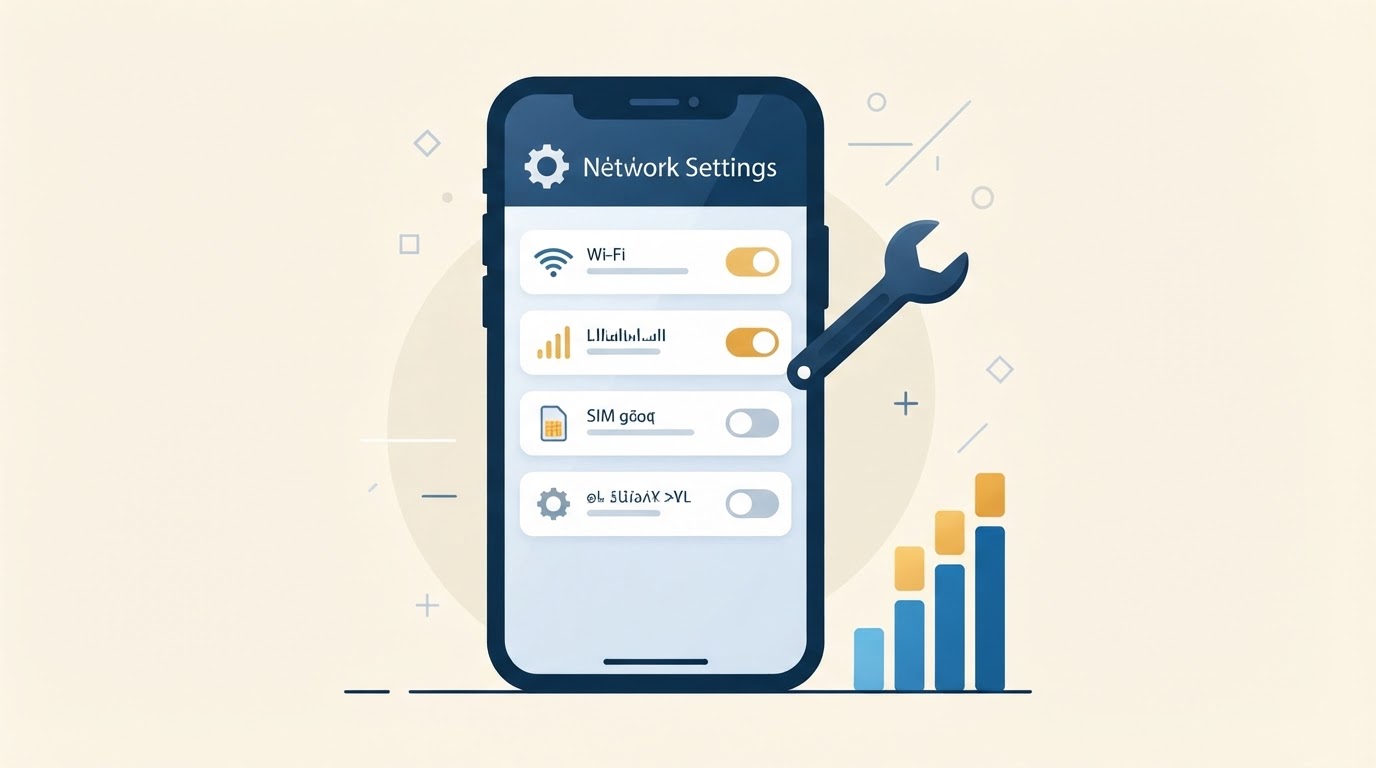
| Symptom | First check |
|---|---|
| QR email missing | Spam folder and My eSIMs |
| QR will not scan | Wi-Fi, compatibility and manual details |
| “Code no longer valid” | Profile may already be installed |
| Installed but no signal | Destination coverage and line enabled |
| Signal but no internet | Mobile-data line, roaming and APN |
| Data is slow | Congestion, network selection and data settings |
| Top-up not active | Wait ten minutes and toggle aeroplane mode |
| Hotspot has no internet | Confirm phone data works first |
Fix 1: QR-code email did not arrive
ConnectedYou sends an order confirmation and a separate QR-code email. Its Help Centre says the second message may arrive within 24 hours.
- Search the inbox Look for messages from ConnectedYou.
- Check other folders Look in spam, junk and promotions folders.
- Verify the address Confirm the checkout email address was correct.
- Check My eSIMs Sign in and look for download details.
- Contact support Do so if 24 hours have passed.
Do not buy the same package again merely because the second email is delayed. That can create two non-transferable orders.
Fix 2: The eSIM will not install
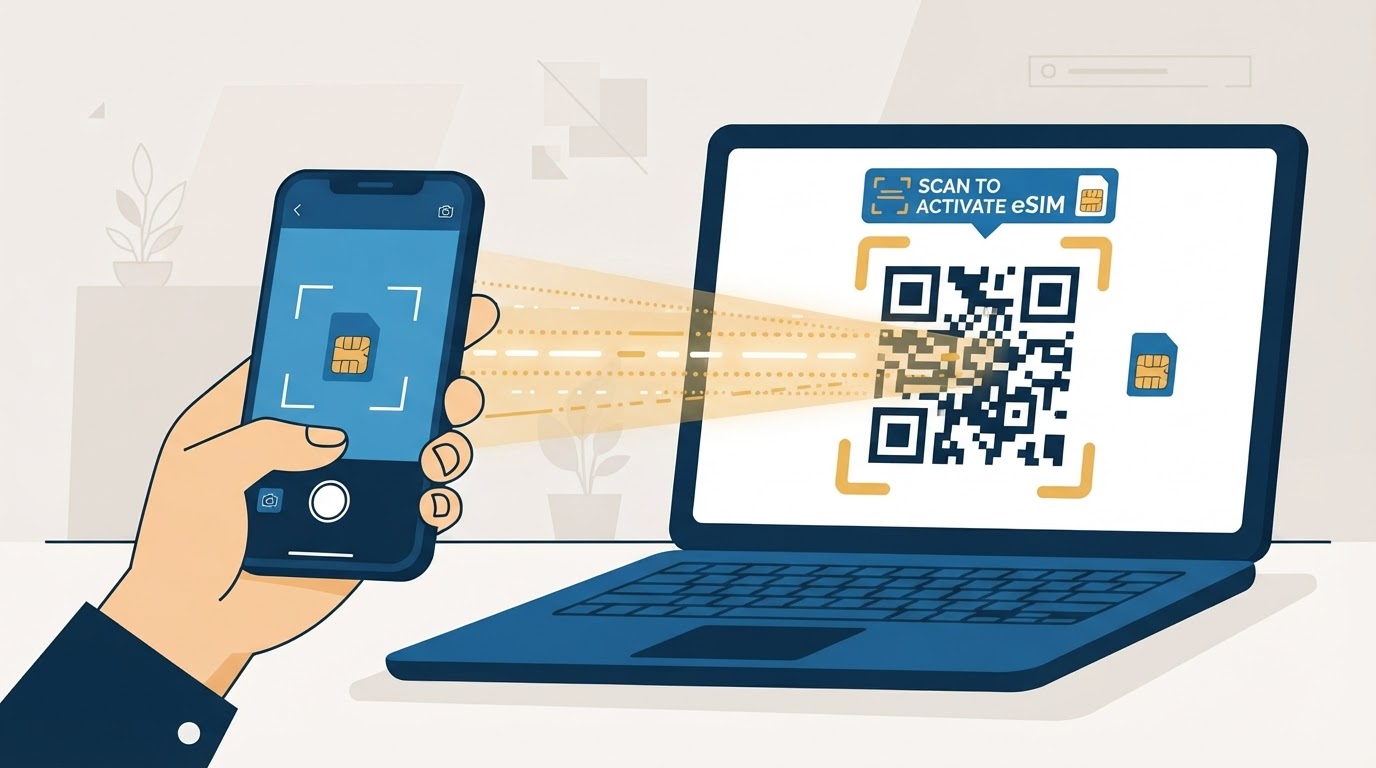
Check the device before blaming the QR code.
- The exact model must support eSIM.
- The phone must be carrier-unlocked.
- Wi-Fi must be stable.
- The operating system should be current.
- The device must allow another stored eSIM profile.
On iPhone, open Settings > Mobile Service > Add eSIM. On Samsung, use Settings > Connections > SIM manager > Add eSIM. Pixel menus usually sit under Network & Internet > SIMs.
If Add eSIM does not appear, read the ConnectedYou device compatibility guide. A software update cannot add missing cellular hardware.
Fix 3: The QR code is not recognised
Open the QR through the device’s eSIM settings rather than an ordinary barcode app. Display it on another screen or print it at a readable size.
If scanning fails, enter the SM-DP+ address and activation code from the delivery email manually. Copy characters exactly and avoid added spaces.
iPhone users with iOS 17.4 or later may have a direct installation link in the ConnectedYou email. Open it on the iPhone and follow the system prompt.
Fix 4: “This code is no longer valid”
ConnectedYou says this can occur when the QR code has already been used. Check Mobile Service, Cellular, SIM manager or SIMs for an installed profile. It may have a generic label rather than ConnectedYou.
Also consider whether the QR was scanned on another device. ConnectedYou profiles cannot transfer between devices or accounts after installation.
If the profile is not installed anywhere and the code was never used, take a screenshot and contact support. Do not repeatedly scan or delete profiles while waiting.
Fix 5: Installed but no service at home
A destination eSIM may not register in your home country. ConnectedYou says the data plan activates when it connects in the supported destination.
Installation before departure is recommended. Lack of service outside the coverage area is not proof that installation failed. Confirm that the profile appears in settings, then leave it off until arrival.
Fix 6: No data after arrival
Work through these steps in order:
- Check coverage Confirm the exact country appears on the product coverage list.
- Enable the line Turn on the ConnectedYou eSIM line.
- Select for data Choose ConnectedYou for mobile data.
- Turn on roaming Enable data roaming for ConnectedYou.
- Disable switching Turn off mobile-data switching.
- Toggle aeroplane mode Leave it on for about 20 seconds.
- Restart the phone Do so if it still does not register.
- Test a webpage Wait several minutes and try a basic site.
Roaming is expected here
Keep roaming off on the home SIM. Travel eSIM roaming is expected because ConnectedYou uses partner networks; home-SIM roaming can create charges.
Fix 7: Check the APN
Many profiles configure the access point automatically. Change it only if the ConnectedYou email or support instructions require it.
Some ConnectedYou guidance uses globaldata as the APN. If supplied for your profile:
- Enter the APN exactly.
- Leave username and password blank unless instructed.
- Save the profile.
- Select it as active.
- Toggle aeroplane mode.
Do not copy an APN from an unrelated provider. Wrong APN settings can show signal while blocking internet access.
Fix 8: Check package status and data balance
Sign in to My eSIMs. The account can show:
- Active package and remaining data
- Upcoming package or unused top-up
- Expired or fully consumed package
- eSIM status
- Available top-ups
Use the refresh control to update the balance. ConnectedYou also sends alerts at 50% and 80% use.
If the package is expired or empty, settings changes will not restore data. Buy an eligible top-up or a new destination plan.
Fix 9: Top-up purchased but not working
ConnectedYou says top-ups should work immediately. If the original data had completely run out, allow up to ten minutes. Toggle aeroplane mode to trigger a new network session.
Confirm that the top-up appears under the correct eSIM and destination. ConnectedYou only permits a top-up for the original destination. An Australia top-up cannot be attached to a Slovenia profile.
Read the ConnectedYou top-up guide for account and partner-linking steps.
Fix 10: Data is slow
ConnectedYou advertises 5G where available and 4G elsewhere, but speed depends on local coverage, congestion, device bands and network priority.
Try:
- Change position Move outdoors or near a window.
- Disable Data Saver Turn it off temporarily.
- iPhone tracking setting Disable Limit IP Address Tracking for the line temporarily.
- Toggle aeroplane mode Force a fresh network session.
- Change network mode Switch briefly to 3G or LTE, then return to 5G Auto.
- Select another network Manually pick another permitted network if the instructions allow it.
- Retest later Try another location and time.
Do not use one speed test repeatedly. Each test can consume significant data, especially on a fast connection.
Fix 11: Phone data works but hotspot does not
First confirm that a webpage loads on the phone with Wi-Fi turned off. Then:
- Restart Personal Hotspot or Mobile Hotspot.
- Forget the hotspot on the second device and reconnect.
- Change the hotspot password.
- Disable VPN temporarily to test.
- Set the second device connection as metered.
- Check that the connected device is not downloading updates.
ConnectedYou’s product pages say hotspot is supported without a separate published data cap. All tethered use comes from the same allowance. See the ConnectedYou hotspot guide for full setup and data planning.
Fix 12: iMessage does not work
ConnectedYou is data-only, but iMessage can work through data.
On iPhone, open Settings > Messages > Send & Receive. Confirm the Apple ID email is selected. Old or unavailable phone numbers can cause delivery confusion.
Normal SMS and cellular calls are not included. WhatsApp, Signal and FaceTime rely on data and should work where local rules permit.
Fix 13: Partner-purchased eSIM missing from account
ConnectedYou lets customers link authorised-partner eSIMs using the 20-digit ICCID.
- Sign in Create or sign in to a ConnectedYou account.
- Open My eSIMs and Topups Find the linking option.
- Find the ICCID Check the reseller message or device settings.
- Enter 20 digits Use digits only, without letters or symbols.
- Link and refresh Link the eSIM and refresh if details take time to appear.
If it says the eSIM is already linked, check whether another email account was used.
When to contact support
Contact ConnectedYou after completing the relevant checks, or sooner when the 15-day refund window may matter.
- Live chat on the website
- WhatsApp: +45 2452 7923
- Email:
esim@connectedyou.io
Provide the order number, ICCID, phone model, destination, screenshots, error text, local time and troubleshooting already completed. Never send the full card number, password or authentication code.
Build a useful diagnostic record
Support can act faster when the evidence shows where the connection fails. Create one short note containing:
| Detail | Example |
|---|---|
| Device | iPhone 15, iOS current version |
| Location | Airport terminal and city |
| eSIM state | Installed and enabled |
| Network state | Signal name or No Service |
| Data settings | ConnectedYou selected, roaming on |
| Balance | Active package with data remaining |
| Error | Exact wording from the screen |
| Tests | Aeroplane mode, restart, APN check |
Add screenshots of the line selection, network status and error. Hide unrelated phone numbers, email addresses and other personal information.
A quick symptom decision tree
- Cannot add the profile: check Wi-Fi, unlock status, eSIM support and manual activation details.
- Profile exists but no network: check destination coverage, enabled line and available partner network.
- Network appears but no web access: check mobile-data selection, roaming, APN and balance.
- Web access works but is slow: test location, congestion, network selection and data-saving controls.
- Phone works but laptop does not: troubleshoot hotspot and the second device.
- Everything stopped after refill: confirm the top-up state, wait ten minutes and reconnect.
Changing settings randomly makes the cause harder to identify. Make one change, test a lightweight webpage and record the result before moving on.
What not to do
Avoid these common mistakes
- Do not reset all network settings before saving Wi-Fi passwords and evidence.
- Do not delete the eSIM as the first fix.
- Do not scan the QR on a second phone.
- Do not publish the QR code or ICCID.
- Do not run repeated high-volume speed tests on a small plan.
- Do not enable roaming on the home SIM by mistake.
- Do not wait beyond the refund-request deadline without contacting support.
Refund considerations
ConnectedYou’s policy says normal refunds are not issued after any part of the data is used. A confirmed technical fault may be investigated individually. Direct unused purchases may be requested within 15 days, less an administrative charge.
Document the problem before the deadline and read the ConnectedYou refund policy guide. Reseller purchases must be handled through the reseller.
Prevent problems before travel
- Confirm device compatibility and unlock status.
- Install over stable Wi-Fi.
- Keep the QR and manual details available offline.
- Save ConnectedYou support contacts.
- Download offline maps.
- Verify every country on the plan.
- Do not delete the profile after installation.
- Buy within the 180-day activation period.
For normal installation, follow how ConnectedYou eSIM works. If you end up buying a replacement plan, the coupon page tracks the current 10% code ESIMBROS10.
Frequently asked questions
Why does ConnectedYou show no service before my trip?
The destination profile may not register outside its coverage area. The package should activate when it connects at the destination.
Why is my ConnectedYou QR code invalid?
It may already have been used. Check whether the profile exists on this or another device, then contact support if it was never installed.
Should data roaming be on?
Yes for the ConnectedYou line. Keep roaming off on the home SIM to reduce unwanted charges.
What is the ConnectedYou APN?
Some profiles use globaldata, but follow the exact instructions supplied with your order.
How long does a top-up take?
It should be immediate, but ConnectedYou advises allowing up to ten minutes after the previous package is fully consumed.
Should I delete and reinstall the eSIM?
No, not without support guidance. The profile is non-transferable and its QR may be single use.
How can I reach support?
Use website chat, WhatsApp at +45 2452 7923 or esim@connectedyou.io.