ConnectedYou hotspot facts
| Feature | Published position |
|---|---|
| Phone hotspot | Supported |
| Separate tethering allowance | None published on inspected plans |
| Separate speed cap | None published by ConnectedYou |
| Data source | Same eSIM package |
| Multiple devices | Possible, subject to phone limits |
| MacBook use | Connect through phone hotspot |
| Local performance | Depends on network and coverage |
“No hotspot limit” is not unlimited data
A 5GB eSIM still provides 5GB total across the phone and tethered devices.
Affiliate disclosure: We may earn a commission from a ConnectedYou purchase through our link.
Check ConnectedYou data plans — 10% off with code ESIMBROS10
Check ConnectedYou Data PlansHow to enable hotspot on iPhone
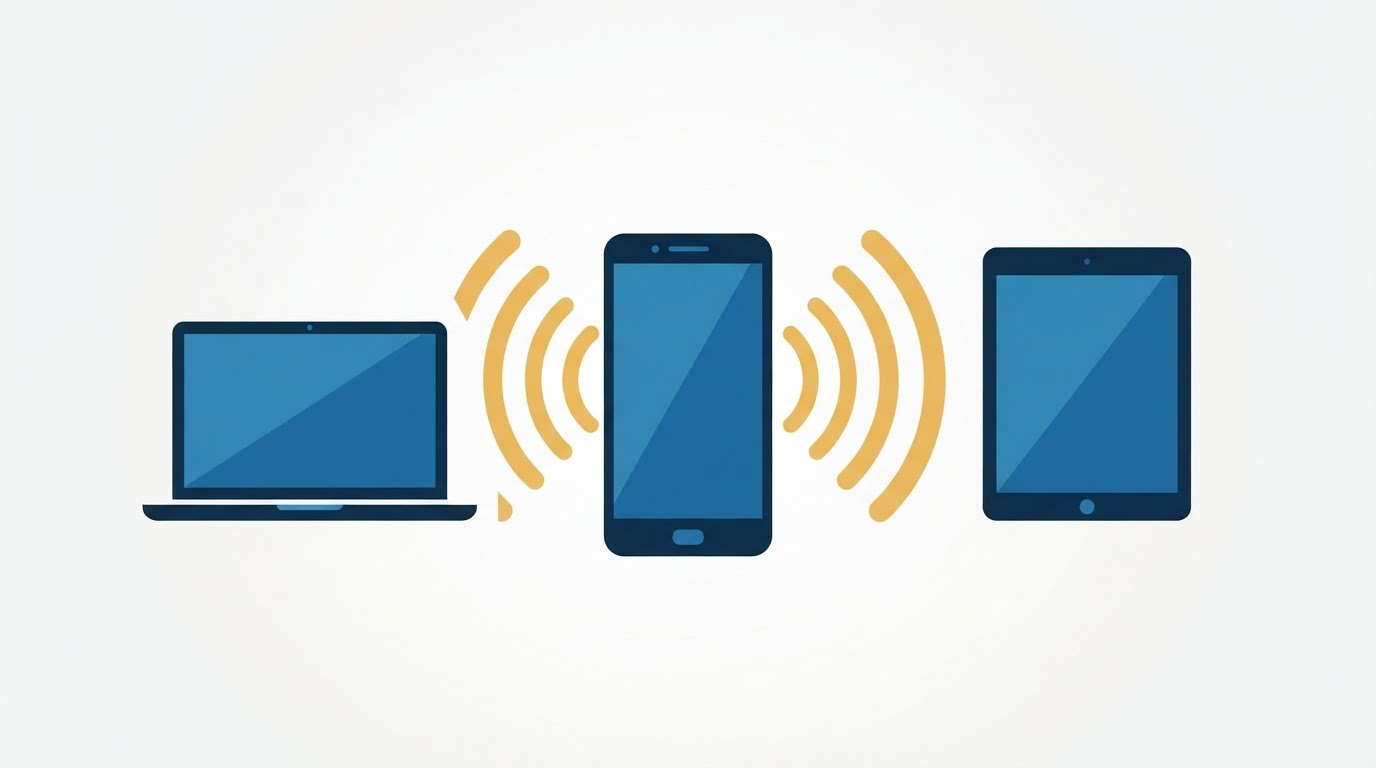
- Confirm data works Check ConnectedYou mobile data works with Wi-Fi off.
- Open Personal Hotspot Go to Settings > Personal Hotspot.
- Allow others to join Turn on Allow Others to Join.
- Set a password Use a strong Wi-Fi password.
- Connect the device Join the displayed network from the laptop or second phone.
If Personal Hotspot is missing, open Settings > Mobile Service, confirm ConnectedYou is the data line and restart the phone. Carrier settings and iOS versions can affect the menu.
Keep data roaming on for the ConnectedYou line. Keep roaming off on the home SIM.
How to enable hotspot on Android
Menu names vary, but the normal path is:
- Confirm data works Check the eSIM has working data.
- Open network settings Go to Settings > Network & Internet or Connections.
- Find hotspot options Select Hotspot and tethering or Mobile Hotspot.
- Configure the network Set a network name and password.
- Turn on the hotspot Enable Wi-Fi hotspot.
- Connect the device Join from the other device.
Samsung users can usually use Settings > Connections > Mobile Hotspot and Tethering. Pixel users normally find it under Network & Internet > Hotspot and tethering.
How much data does a hotspot use?
Tethering itself does not multiply data. The connected device simply tends to perform heavier tasks.
| Activity | Approximate risk to allowance |
|---|---|
| Email and documents | Low |
| Maps and travel booking | Low to moderate |
| General browsing | Moderate |
| Video meetings | High |
| HD streaming | Very high |
| Operating-system updates | Very high |
| Cloud backup | Very high |
Actual use depends on quality settings and content. Check the ConnectedYou balance rather than treating estimates as exact.
Which data plan is suitable?
Emergency laptop access
1GB can cover brief email, a boarding-pass download or a few web tasks. It is not a remote-work package.
Light holiday sharing
3GB to 5GB may work for a couple sharing maps, messages and browsing while using hotel Wi-Fi for video.
Remote work
Start around 10GB and control video quality, updates and cloud sync. Consider 20GB for frequent meetings or several workdays.
Family sharing
20GB can provide flexibility, but multiple phones can consume it quickly. Give each person clear rules or consider separate eSIMs so one device cannot exhaust the group’s connection.
Compare country and regional costs in the ConnectedYou pricing guide.
Set a laptop connection as metered
Windows
Open the connected Wi-Fi network’s properties and enable Metered connection. This can reduce updates and background transfers.
Also pause OneDrive, Windows Update, game launchers and automatic app downloads.
macOS
macOS does not offer the same universal metered switch for every Wi-Fi network. Turn on Low Data Mode where available, pause iCloud Photos and backups, close synchronisation tools and disable automatic downloads.
MacBooks cannot install ConnectedYou directly because they lack native eSIM hardware. A phone hotspot is the normal route — see the compatible devices guide.
Protect the hotspot
- Use WPA2 or WPA3 where offered.
- Create a strong password.
- Do not leave hotspot enabled in public.
- Review the connected-device list.
- Remove unknown devices immediately.
- Change the password after sharing it widely.
- Avoid transmitting sensitive data on devices you do not control.
An eSIM is not a VPN. It provides cellular data but does not make online activity anonymous.
Keep your phone cool and charged
Hotspot, 5G and charging can produce heat. High temperature can reduce battery performance and cause the phone to slow down.
- Keep the phone out of direct sun.
- Remove a thick case if it becomes hot.
- Use a reliable charger.
- Place it where signal is strong.
- Turn off hotspot when finished.
- Prefer 4G if 5G signal is weak and unstable.
A weak-signal phone uses more power while searching for a network.
ConnectedYou hotspot is not working
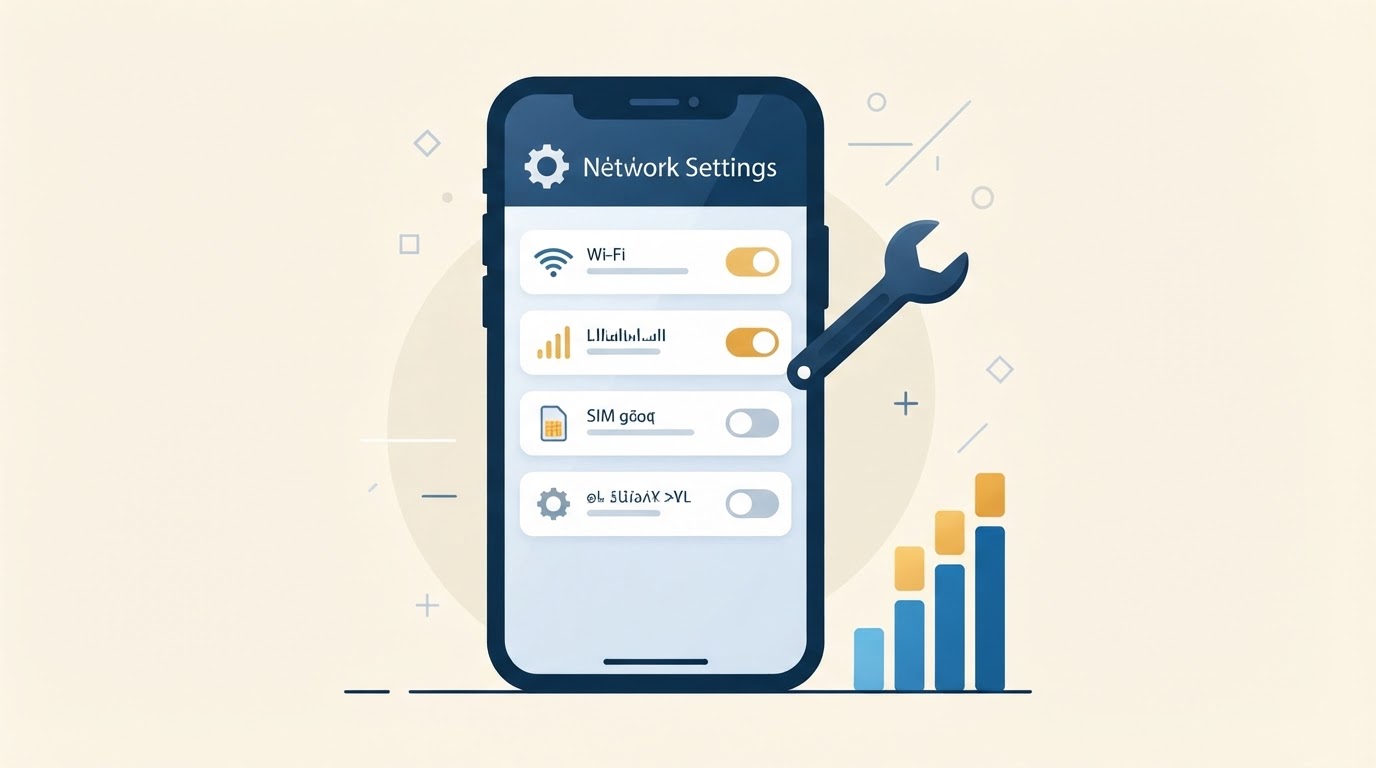
Phone itself has no data
Fix the main eSIM first. Select ConnectedYou for mobile data, enable roaming and confirm the destination is covered.
Laptop connects but shows no internet
Forget the network and reconnect. Toggle hotspot, disable VPN briefly and restart both devices. Check whether the eSIM balance is empty.
Hotspot option is missing
Restart after selecting ConnectedYou as the data line. Confirm that the phone’s software is current. Contact ConnectedYou if the provider settings do not expose hotspot.
Speed is poor
Move the phone near a window, disconnect other devices and test the phone directly. Local coverage, congestion and the second device’s Wi-Fi connection can each be the bottleneck.
Data disappeared unexpectedly
Check per-app usage on the connected device. Common causes are updates, photo backup, streaming, video meetings and cloud-file synchronisation.
Use the full ConnectedYou troubleshooting guide if normal fixes fail.
Can hotspot replace several eSIMs?
Sometimes. One large plan can be cheaper and simpler for a couple travelling together. It also creates a single point of failure. If the hotspot phone leaves, runs out of battery or loses coverage, every connected person loses data.
Separate eSIMs are better when travellers split up, need independent navigation or have different data habits. One shared plan is practical when the group stays together and carries a power bank.
Plan a video meeting before joining
Remote workers should not wait for a live call to test tethering. Before the meeting:
- Test the location Check that the phone has stable data in the work location.
- Connect one device Connect only the work device.
- Pause sync Stop cloud sync and updates.
- Close heavy apps Close streaming tabs and launchers.
- Lower video quality Reduce meeting quality or use audio only.
- Manage heat Keep the phone charging in a cool place.
- Have a backup Keep hotel Wi-Fi or another eSIM ready.
A connection can show 5G yet become unstable under upload load. A short test call is more useful than a headline download speed.
USB and Bluetooth tethering
Some phones support USB or Bluetooth tethering in addition to Wi-Fi hotspot. USB can provide a stable link and charge the phone, but heat can still build up. Bluetooth uses less power but is usually slower.
ConnectedYou’s public pages refer broadly to mobile hotspot. Device-level tethering methods depend on the phone and operating system. If Wi-Fi hotspot works but USB does not, consult the manufacturer rather than changing the eSIM APN.
Estimate group data fairly
For a family, assign a daily budget. A 20GB plan over ten days gives an average of 2GB per day across everyone. Reserve part of the allowance for the final travel day, when boarding passes, transport changes and maps matter most.
Use the 50% and 80% alerts as group checkpoints. Ask connected users to disable autoplay and backups before sharing the password.
Hotspot privacy in hotels and airports
A private phone hotspot can reduce reliance on open public Wi-Fi, but it is not automatically anonymous. Websites and apps still receive traffic through the mobile connection. Use encrypted services, install software updates before travel and avoid sharing the hotspot with strangers.
Hotspot on the Global eSIM
ConnectedYou’s Global collection lists hotspot support across its 133-country package. This can help a traveller carry one profile across regions and share data on arrival.
Global data is expensive compared with many local plans. The checked prices were $10 for 1GB, $25 for 3GB, $40 for 5GB, $79 for 10GB and $155 for 20GB. Heavy tethering makes local or regional plans worth comparing.
Read the ConnectedYou Global eSIM review before using it for remote work.
Track usage and top up
ConnectedYou sends 50% and 80% data-use alerts. My eSIMs shows the balance and eligible top-ups. The 80% alert is the time to compare a refill with a new plan.
A top-up should work immediately, but it may need up to ten minutes after total depletion. Toggle aeroplane mode if the new package remains upcoming. Full steps are in the ConnectedYou top-up guide.
Pick a hotspot-friendly plan — 10% off with ESIMBROS10
View ConnectedYou PlansFrequently asked questions
Does ConnectedYou allow hotspot?
Yes. Current product pages state that mobile hotspot is enabled.
Is hotspot data unlimited?
No. There is no separate published tethering cap, but usage comes from the fixed eSIM allowance.
Can I connect a laptop?
Yes, through Wi-Fi hotspot. Some Windows laptops can also install eSIM directly if they contain supported cellular hardware.
Can I connect a MacBook?
Yes through a phone hotspot. A MacBook cannot install ConnectedYou natively.
How many devices can connect?
The phone sets the device limit. More devices divide available speed and consume the shared allowance faster.
Why is hotspot slower than phone data?
The second Wi-Fi link, connected devices, interference and background downloads can add bottlenecks beyond the cellular network.
Does a VPN work over hotspot?
Usually, but VPN configuration can affect speed or sharing. Test without it when diagnosing a fault.